
How to Turn ChatGPT Conversations into Flashcards
Prerequisites
Before we begin, make sure you have our browser extension installed. You can install it here or get it from the Chrome Web Store, Firefox Add-ons, or Microsoft Edge Add-ons.
Video Tutorial
This tutorial goes with the video above. If you prefer reading, you can follow the written guide below, or check our corresponding blog article: Turn ChatGPT Chats into Flashcards You'll Remember.
Watch on YouTube: How to Turn ChatGPT Conversations into Flashcards
Introduction
Hey, Marius here from Web Highlights. Today I want to show you a really cool feature that solves a problem we all have.
We read a lot online — articles, PDFs, and more and more also ChatGPT conversations, or AI conversations in general. So this also works with Claude, Gemini, or whatever tool you're using. Web Highlights helps you remember what you learn and move it into your long-term memory by creating flashcards for you.
You might remember flashcards from school. Maybe you even used physical ones, kept in a box, where you tried to move each card up to the next level. "Okay, I remember this — next level." Or, "I don't remember this — back to level one." That's what helps you actually remember something and get it into long-term memory.
Today we ask AI questions all the time, and we tend not to remember the answers, because it feels like it's not worth keeping — we can always just ask again. But of course we still want to remember things. That's exactly what this feature is for. Let me show you two ways to do it. If you want the science behind it, we cover it in the Spaced Repetition Learning guide.
Generate Flashcards from a Whole Conversation
Let me give you an example. I recently read the book Thinking, Fast and Slow, which I can really recommend. So let's ask ChatGPT: "What are 10 concepts of the book Thinking, Fast and Slow?"
ChatGPT gives us a long answer. We can scan it — but most likely we'll forget most of it. So if I decide this conversation is worth remembering, I can use Web Highlights to generate flashcards from it.
Open the Web Highlights sidebar and click the Generate Flashcards quick action.
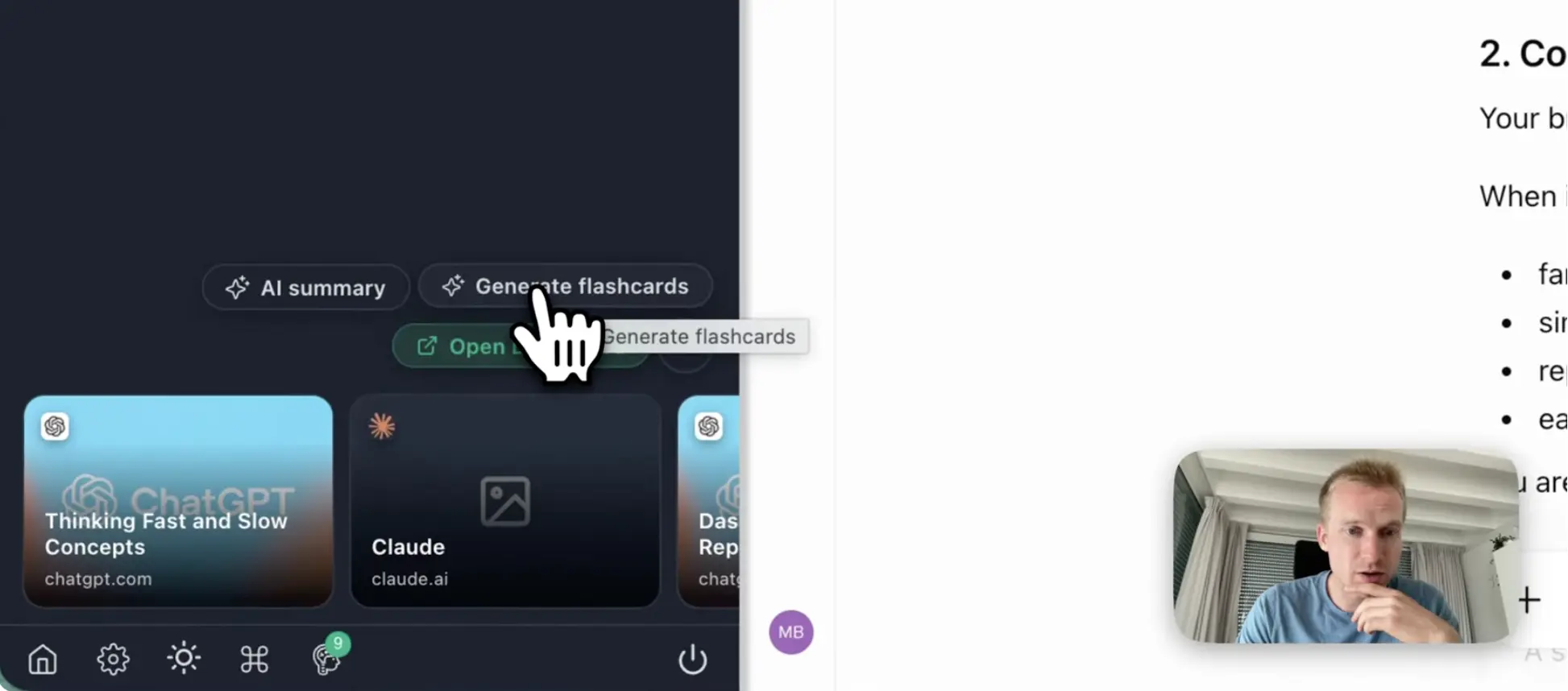
When you click it, it uses our private on-device AI. This is a built-in AI in Chrome, which also works in Edge. It's a local AI model that doesn't talk to any external service — so everything happens on your own machine. You don't have to worry about sending your conversations to external companies like OpenAI. It's completely local, and it even works offline.
By default it creates 10 flashcards. You can change that — for example, I'll set it to eight. It summarizes what's in the conversation and turns it into questions and answers.
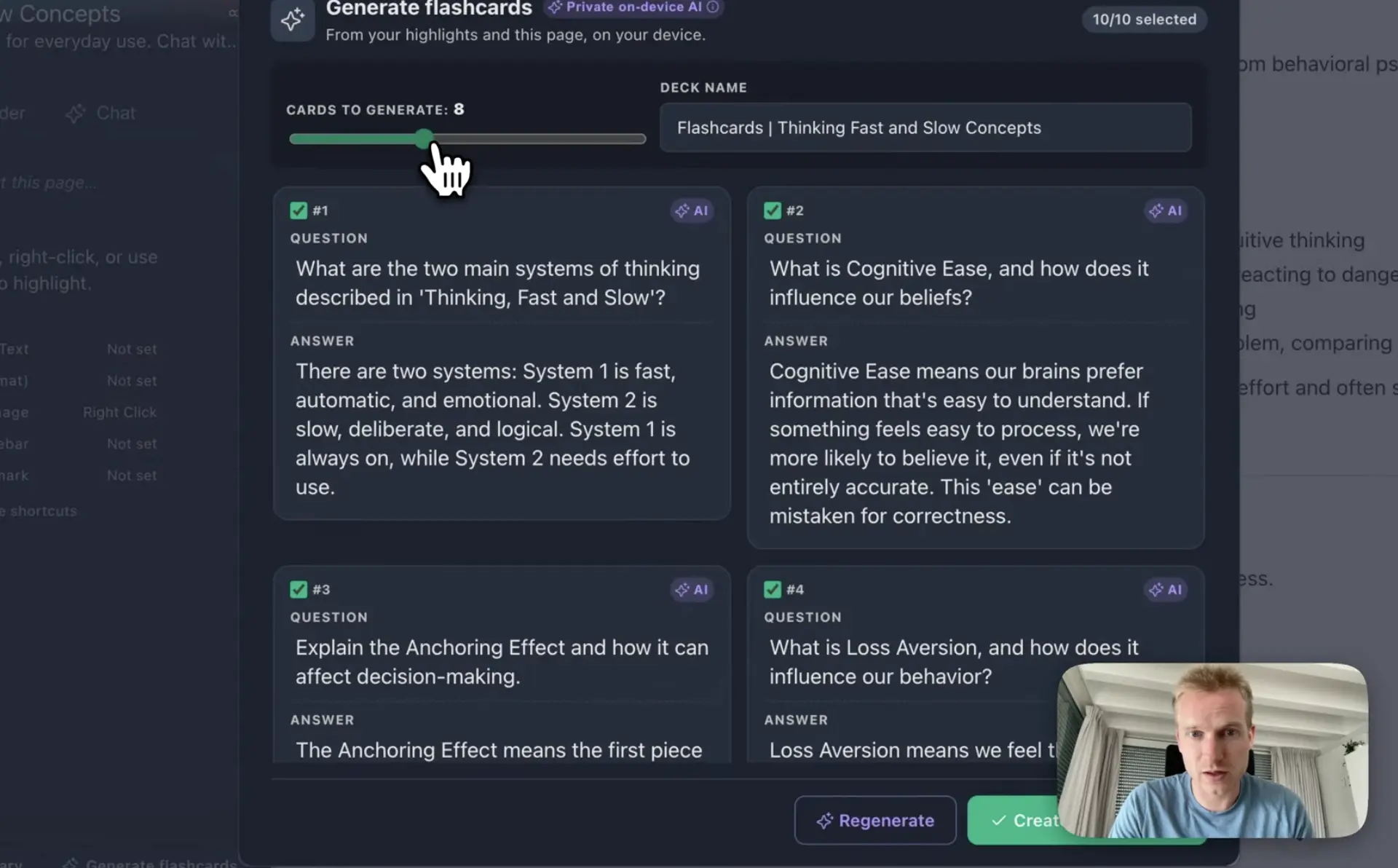
Here's an example: "What are the two main systems of thinking described in Thinking, Fast and Slow?" It tells us there are two systems — one fast, one slow. We don't need to go into detail here, but the cool thing is we now have eight flashcards.
I can also say, "This one isn't worth keeping," and remove a couple. Now I have six flashcards, and that's my learning deck. Once you're happy with the result, save the deck to your library.
Learn in a Session
With the deck saved, click Start learning to open a learning session.
Each card shows its question first. You try to recall the answer, tap to reveal it, and then grade yourself Correct or Incorrect. For example, "What is cognitive ease, and how does it influence our beliefs?" — I reveal the answer and mark whether I remembered it. Something I didn't recall, I mark as Incorrect.

Click through the cards and you reach the end of the session — and you've started a streak.
The Learning Dashboard
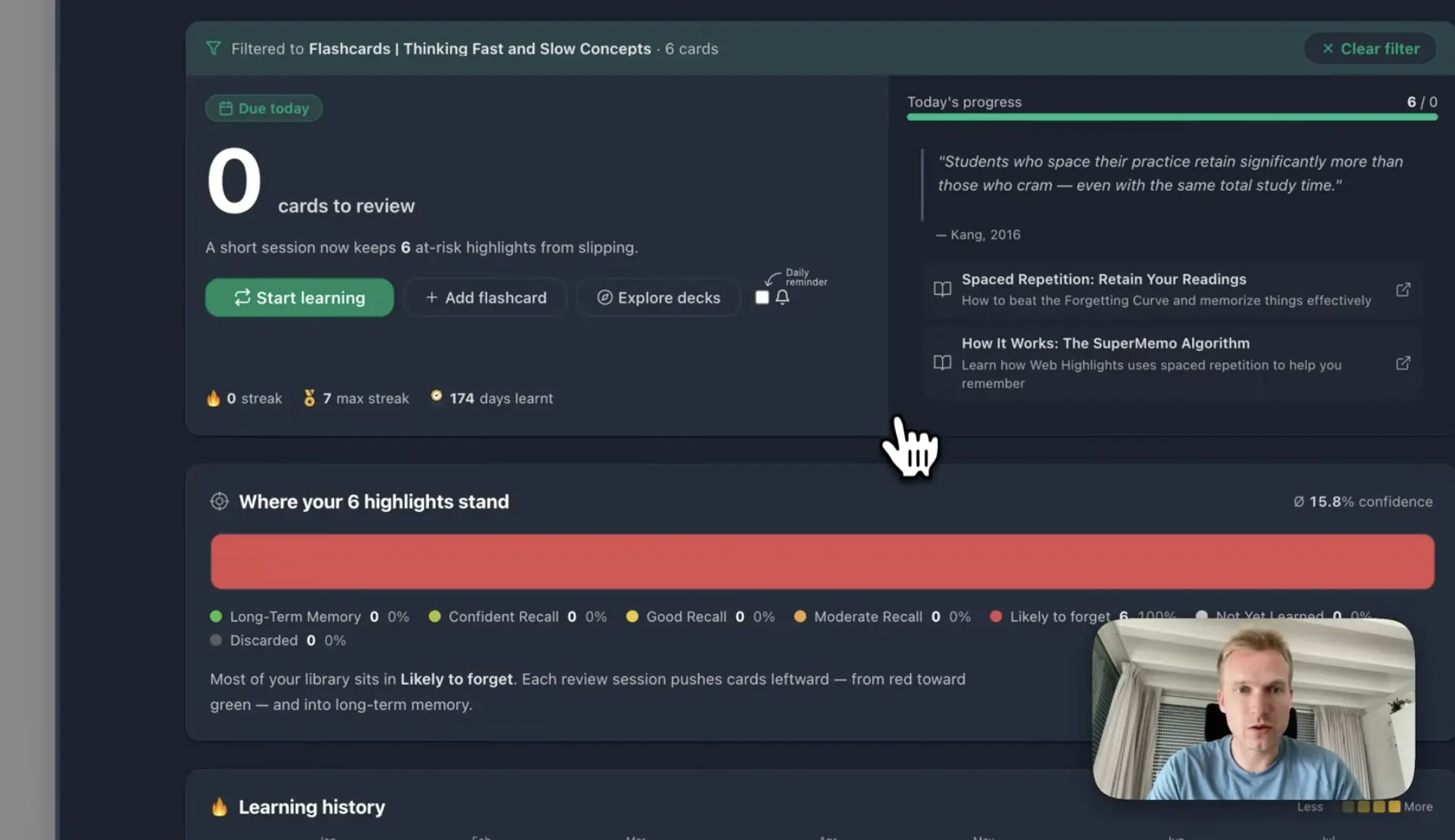
In the learning dashboard you can see your progress. Right now it's filtered to the flashcards from this book, and you can see the six cards from Thinking, Fast and Slow are still Likely to Forget, with a confidence of about 15.8%.
If I clear the filter, you can see I have many cards to review — and which ones are already in long-term memory. In my case, 112 cards are already in Long-Term Memory. The goal is to get all your cards there.
This works with a spaced repetition algorithm called the SuperMemo algorithm. It works much like those physical flashcard boxes from the past: cards you didn't recall come back sooner, and cards you remember well get pushed further into the future. Say you remember a card five times — it might ask you again in six months, and if you still remember it then, you won't be asked again. You can read more in the SuperMemo algorithm section.
Create a Flashcard from a Single Answer
The second way is to create a specific flashcard for a single answer.
Let me give you a really simple example. We just want to know: "What is the capital of Germany?" — which hopefully everyone knows. Now we can use Web Highlights to highlight the answer. I'll highlight it in yellow, and it shows up in the sidebar.

Now I click the brain icon to create a flashcard just for this answer. I could type the question myself — "What is the capital of Germany?" — or I can use AI, which pre-fills the question and answer based on this specific highlight.
This is really practical when you read something online and think, "This is important to know — and important to still know in six months." You just highlight it and create a flashcard from it.
You'll notice the answer can be a bit longer: "Berlin is the main city and seat of government in Germany." The AI even included a little analogy to make it easier to remember. Then I save it.
From any page, you can also start a learning session that's filtered to this flashcard — and we obviously remember that the answer is Berlin.
Filter What You Learn
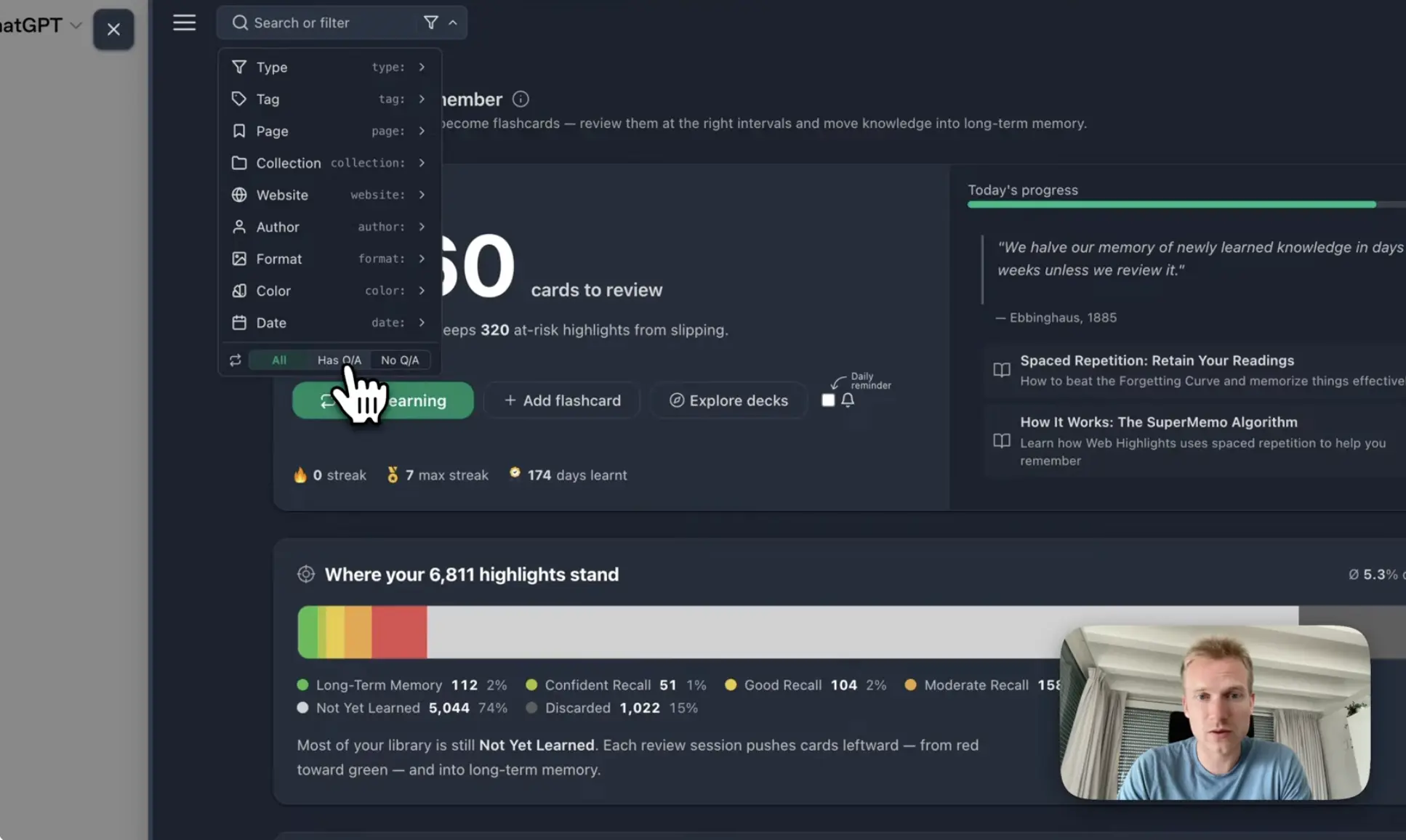
You can filter your cards in the dashboard — for example, by the specific pages you highlighted. You can also show only flashcards that have a question and answer. In my case that's 123 cards, and I can start a learning session from there.
Troubleshooting the AI
If you have trouble getting the AI model to work, there's a Chrome AI troubleshooting guide in our documentation, where you can also see the other requirements.
The first time you use it, generation might take a while, because it needs to download the model. After that it's fast — you can see that in the demo. You also need a bit of free disk space. If you run into problems, that page walks you through it.
Conclusion
For me, this is a really good way to actually remember and learn the things you pick up by talking to AI — instead of asking the same question again next week. Highlight a single answer, or turn a whole conversation into a deck, and let spaced repetition do the rest.
Ready to Get Started?
Open your last genuinely useful ChatGPT conversation and turn it into flashcards. If you're new to Web Highlights, install the extension for the full experience, or try the review system first with a ready-made deck in the free learner — no account needed.