
Sidebar
Video transcript
- 0:02 The sidebar. Here is how you get the most out of the sidebar in Web Highlights.
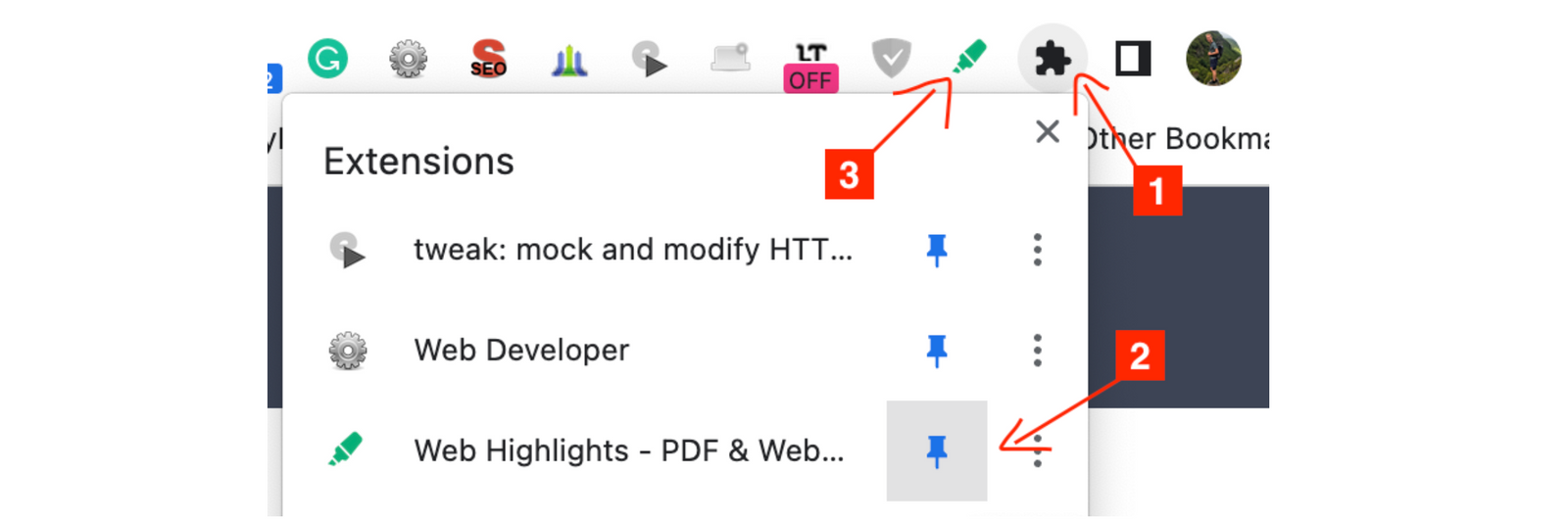
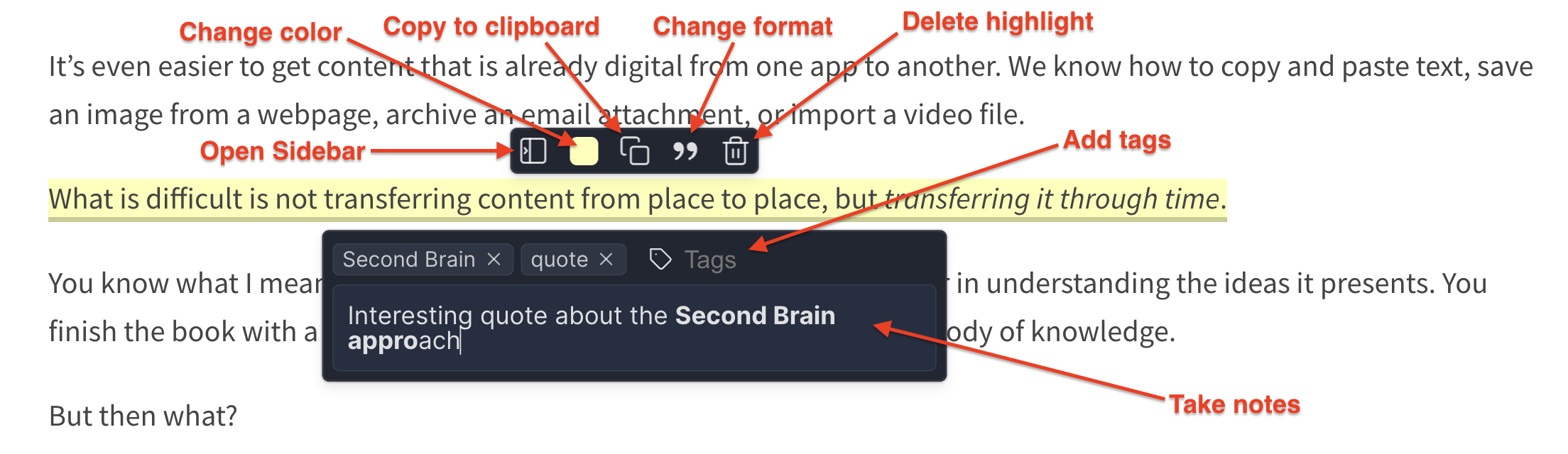
- 0:06 Open the sidebar. There are three ways to open it: the extension icon in your browser toolbar, the shortcut Alt plus W, or simply the sidebar button on any highlight.
- 0:15 All highlights of the page. In the sidebar you find all highlights of the page, in the same order as they appear in the article, together with your notes.
- 0:21 Jump to a highlight. Click on a highlight in the sidebar, and the page scrolls right to it. That is really handy on long articles.
- 0:26 Find it in the sidebar. It also works the other way around. When you click a highlight on the page, its entry in the sidebar lights up.
- 0:31 Reorder highlights. If the order is not quite right, just hover over a highlight and move it up or down with the small arrows next to it.
- 0:37 Change the width. The width is up to you as well. Simply drag the edge of the sidebar to make it wider or smaller.
- 0:42 Right side or floating. Hovering over the edge also shows a small menu, where you can move the sidebar to the right side, or let it float over the page instead of pushing the content aside.
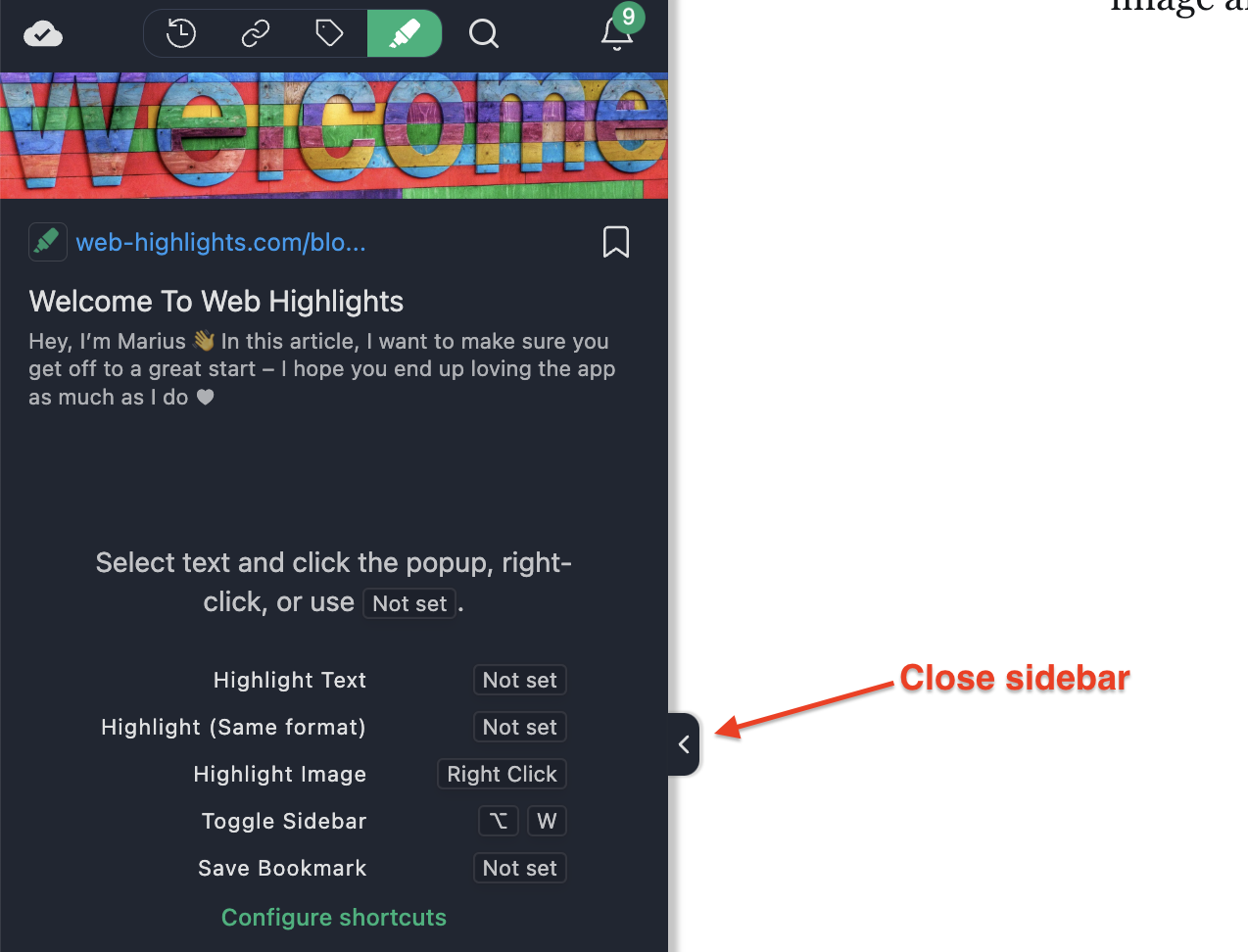
- 0:52 Close the sidebar. And to close the sidebar, click the small arrow at its edge, or press Alt plus W again.
The extension sidebar is your main hub for highlights, bookmarks, and tags.
Open Sidebar
There are three ways to open the sidebar:
- Click the extension icon in the toolbar
- Click the sidebar icon in the highlight popup
- Use the keyboard shortcut
Alt + W(Windows) orOption + W(Mac)
Keyboard Shortcuts 💡
Paste chrome://extensions/shortcuts into your browser's address bar to change your shortcuts. You can also click the shortcut icon at the bottom of the sidebar.
Close Sidebar
There are also three ways to close the sidebar:
- Click the extension icon in the toolbar
- Click the sidebar arrow icon
- Use the keyboard shortcut again
Alt + W(Windows) orOption + W(Mac)
Customize Sidebar
Since everyone has different preferences—left or right side, large or compact—our sidebar is fully customizable.
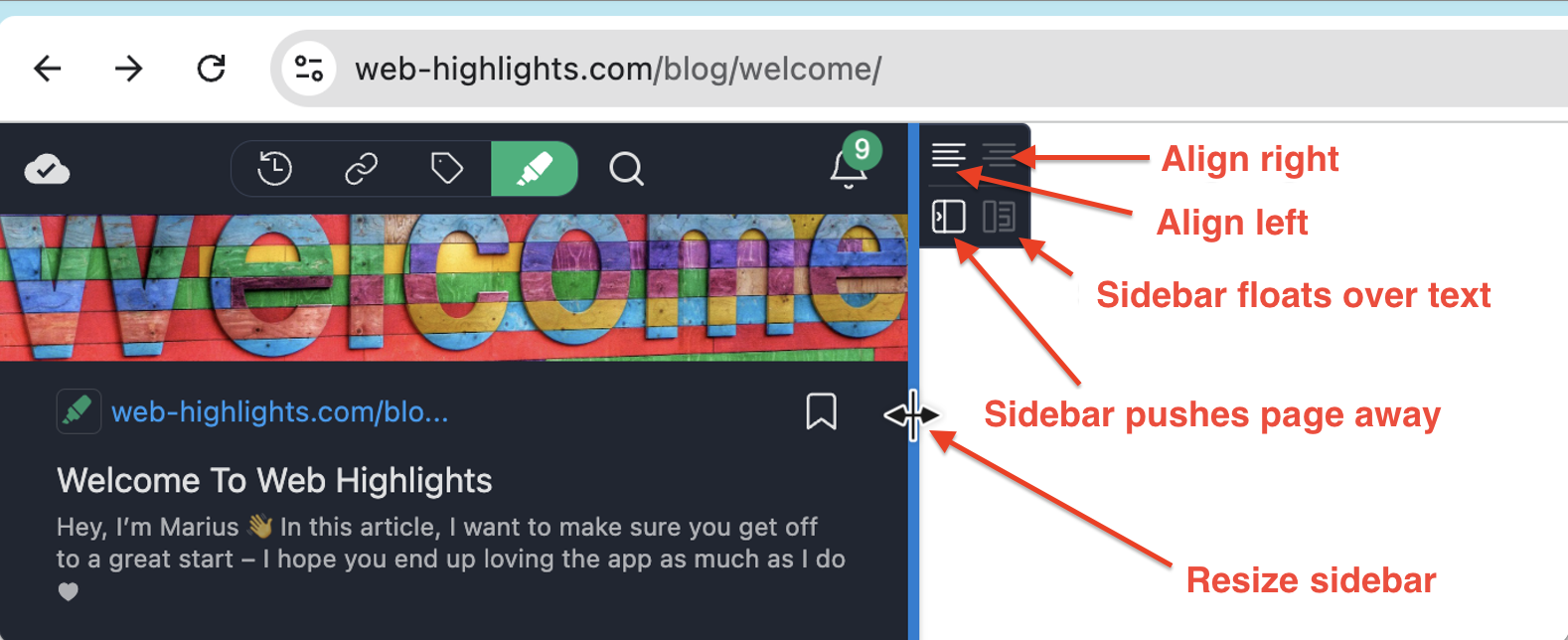
- To resize the sidebar, hover over the edge until it turns blue, then click and drag.
- To align it left or right, use the icons at the top of the box that appears when you hover over it.
- By default, the sidebar pushes the webpage to the side, but if you'd prefer it to float over the text, just adjust this with the icons at the bottom.
Find & Jump Between Highlights
When a page has many highlights, the sidebar and the page stay in sync, so you can move between them quickly.
Click a highlight on the page to find it in the sidebar
Click any highlight on the webpage and its matching entry lights up in the sidebar and scrolls into view—so you can instantly spot it, even in a long list.
- Click the same highlight again to remove the focus.
- Click a different highlight to move the focus to that one.
- Click anywhere else on the page to clear the focus.
Click a highlight in the sidebar to jump to it on the page
Click any highlight in the sidebar and the page scrolls straight to it, centering the highlighted text in the viewport. It's the fastest way to get back to where a highlight lives on a long page.
Prefer a shortcut on the edge of the page? 💡
You can also jump to any highlight from the outline rail—the thin strip of colored dots on the edge of the page. The rail hides automatically while the sidebar is open.
Manual Reordering of Highlights
While Web Highlights attempts to automatically sort highlights in the order they appear on the page, some websites' complex layouts can make this challenging. This typically happens with:
- Multi-column layouts
- Dynamic content loading
- Complex CSS positioning
- Floating elements
- Non-standard HTML structures
For these cases, Web Highlights provides two options to manually reorder your highlights:
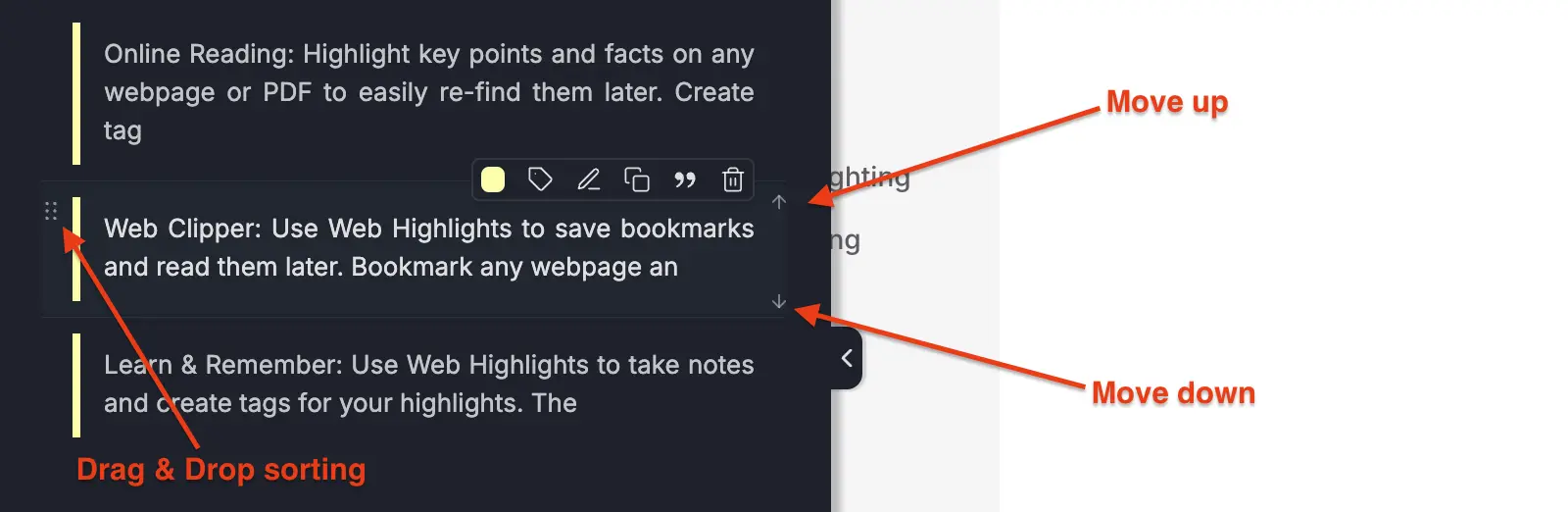
Drag and Drop Sorting
You can drag any highlight in the sidebar to manually reorder it. Simply:
- Hover over a highlight and grab the drag handle (the dots at its top-left corner)
- Drag it to the desired position
- Release to drop it in place
Up and Down Arrows
You can also move a highlight with the small arrows that appear on its right when you hover over it. Simply:
- Hover over the highlight you want to move
- Click the up arrow to move it up, or the down arrow to move it down
- Shift-click an arrow to move it to the top or bottom of your highlights
Shift-Click for Multiple Highlights 💡
Hold Shift while clicking to move a highlight to the top or bottom of your highlights.
Persistent Order 💡
Your manual sorting will persist after closing and reopening the sidebar or reloading the page.