How to Restore DuckDuckGo Bookmarks From a Backup File
Restoring your DuckDuckGo bookmarks means importing an HTML backup file — the kind you get from a bookmark export, in any browser. The exact menu path is below, step by step. This guide assumes that you have already exported your bookmarks from DuckDuckGo to a local backup file. If you haven’t, here is our guide for exporting bookmarks in DuckDuckGo. Here is a step-by-step guide for importing bookmarks in DuckDuckGo:
- Open DuckDuckGo Browser.
- Mobile (Android/iOS): Tap the three dots → Bookmarks → three dots again → Import and select your HTML file.
- Desktop: Go to Settings → More Tools → Import → select Bookmarks HTML File and choose your backup file.
- Navigate to your local backup HTML file, select it, and confirm the import.
- Note: DuckDuckGo prioritizes privacy, which may limit some import options. The browser works best with HTML bookmark files.
Import Bookmarks to Web Highlights
Web Highlights offers a simple way to bring all your existing browser bookmarks into Web Highlights to organize them alongside your highlights and notes.
Here is a step-by-step guide for importing bookmarks to Web Highlights:
- Install the Web Highlights extension on your browser.
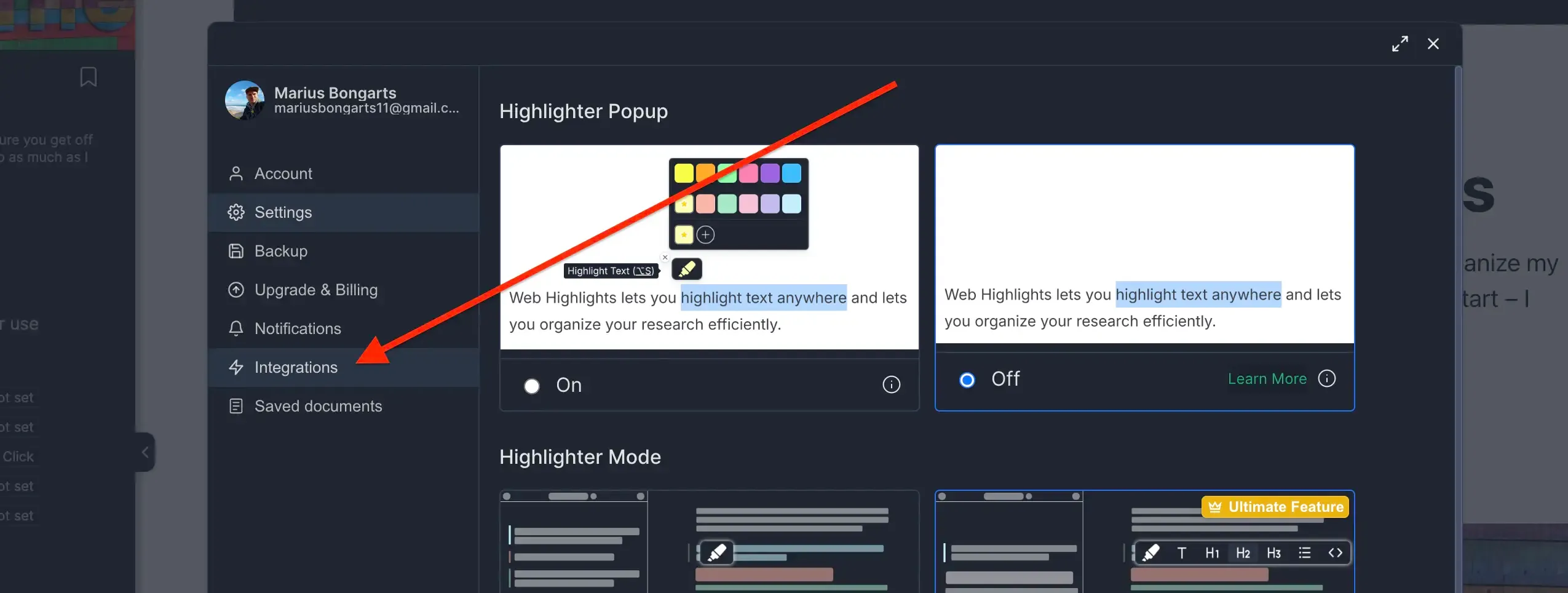
- Open Web Highlights settings.
- Go to Integrations.
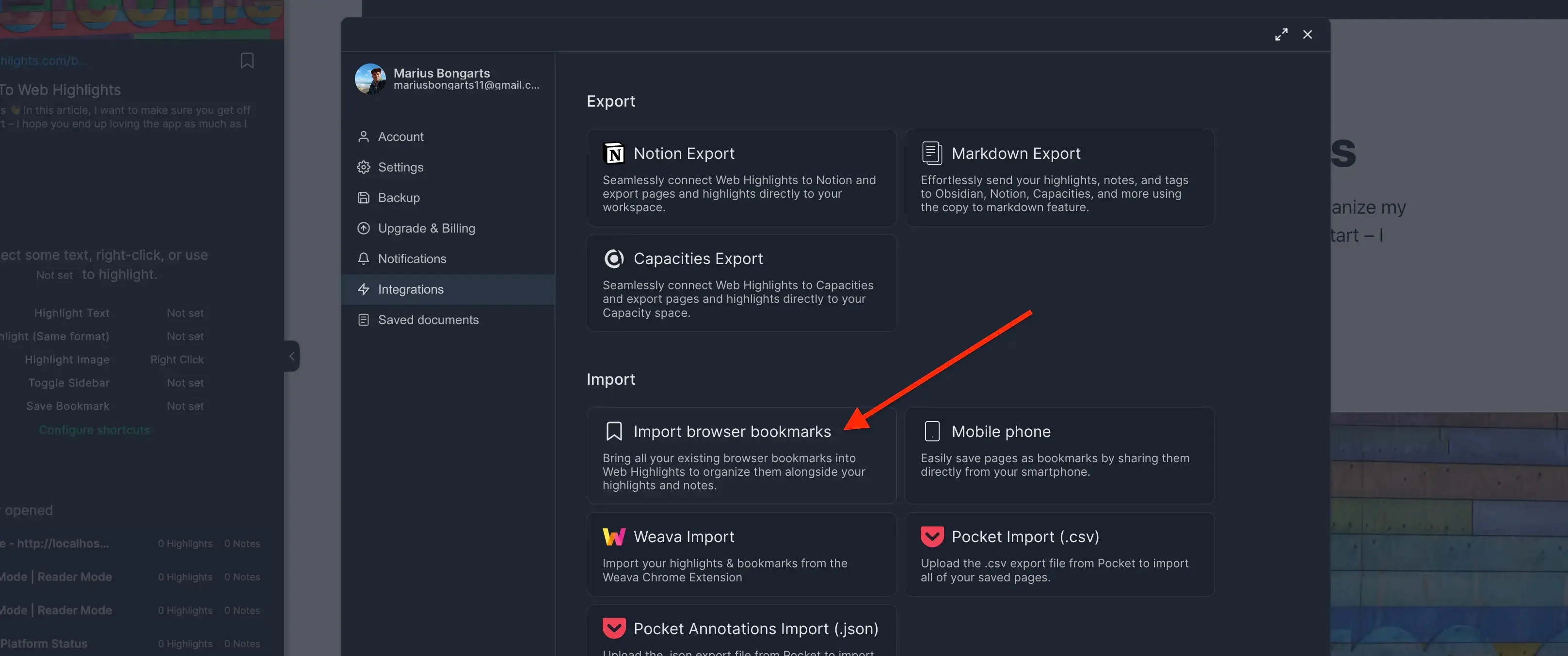
- Go to Bookmarks Import.
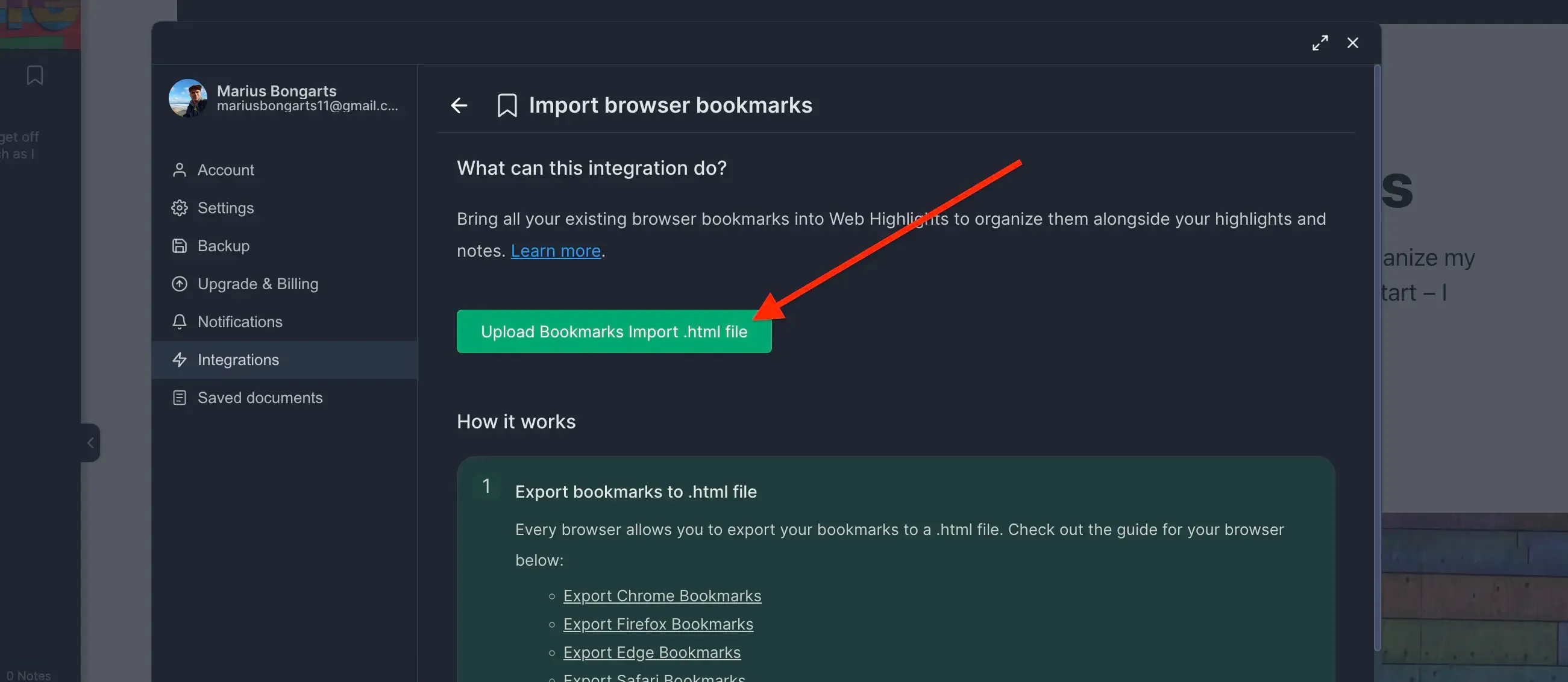
- Click Upload bookmarks file and select the HTML file you exported.
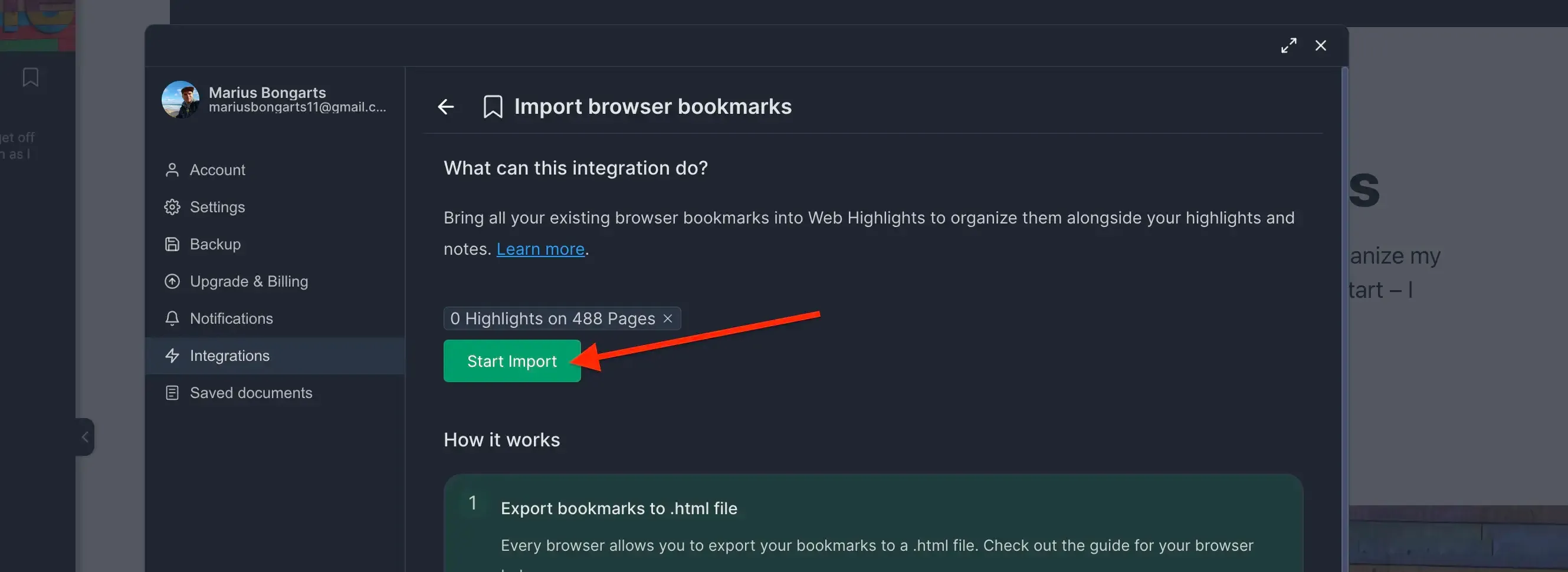
- Click Import to add your bookmarks to Web Highlights.
Need help with another browser? Check out our other browser tutorials.