YouTube Reader

Read any YouTube video transcript online. Just paste the video URL, start reading, and add your own notes and annotations.

Read Any Video's Transcript

Paste any YouTube video link and read the full transcript in a clean, easy-to-read format. Works with most videos that have captions.

Works in Multiple Languages

If captions exist in more than one language, you can switch between them. If there's only one language available, we'll show that one.

Add Notes and Annotations

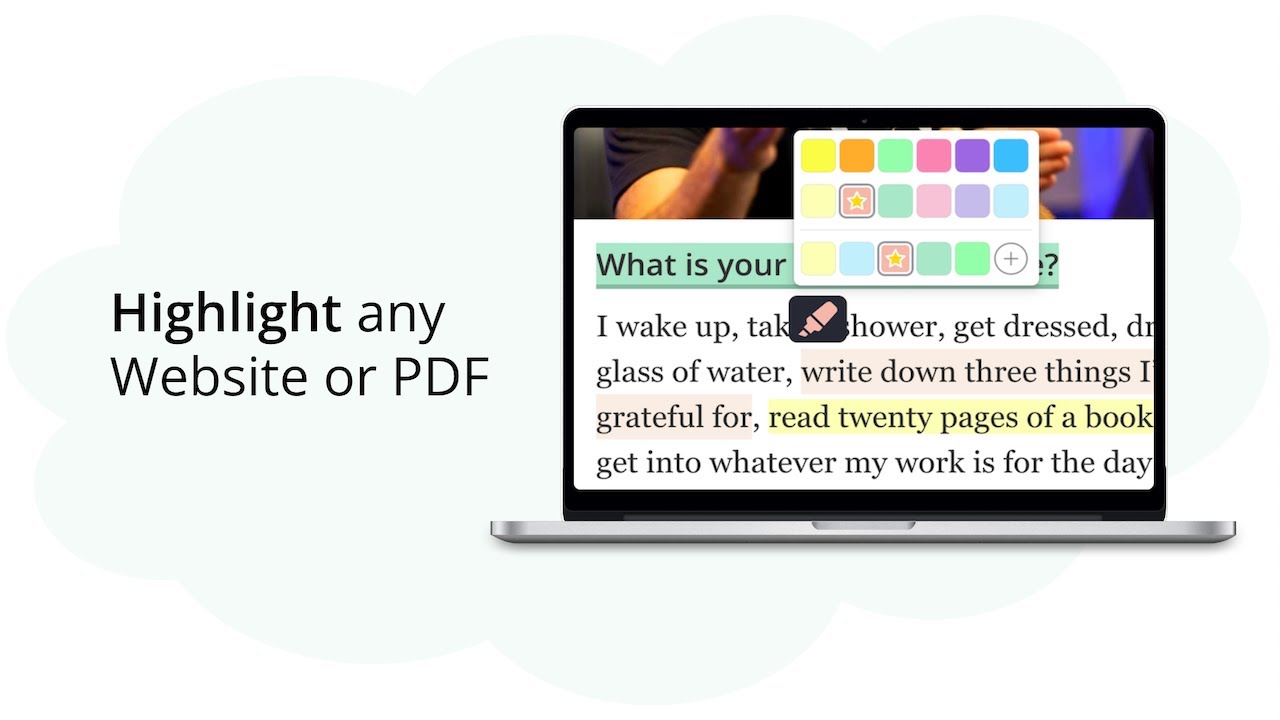
Highlight important parts, add your own notes, and create tags. Turn any YouTube video into a proper study guide with your personal annotations.

Syncs with Video Playback

Play the video and watch the transcript scroll along automatically. It highlights the current sentence so you can easily follow along and take notes.

Customize Your Reading

Make the text bigger, change the background color, or adjust the width. Set it up however works best for you when studying or reading.

Export Your Notes

Save your highlights as PDF or copy them as Markdown for any other app. One-click export to Notion and Capacities is part of the Ultimate plan.

How It Works

  1. 1

    Paste Your YouTube Link

    Just copy any YouTube video URL and paste it above. We'll grab the transcript for you. If the video doesn't have captions, we'll let you know.

  2. 2

    Read and Customize

    The transcript shows up below the video. You can make the text bigger, change colors, or adjust the width. When you play the video, it'll highlight the current sentence automatically.

  3. 3

    Highlight and Take Notes

    Click and drag to highlight any text with different colors. Add your own notes and tags. If the video has captions in other languages, you can switch between them too.

  4. 4

    Save Your Work

    Download your highlights as PDF or copy them as Markdown for any other app. One-click export to Notion and Capacities is part of the Ultimate plan.

Frequently Asked Questions

How does this work?
We grab the captions from any YouTube video and show them in a clean reader view. You can highlight text, add notes, and customize how it looks. Just paste the video link and start reading.
Does this work with any YouTube video?
Yep! As long as the video has captions, it'll work. Whether it's a lecture, tutorial, or just a regular video, you can read and annotate the transcript.
What can I do with my highlights?
Save them as PDF to print or copy them as Markdown for other apps — both include your highlights, your notes and the original video link. One-click export to Notion and Capacities is part of the Ultimate plan.
Will my highlights be saved?
Yes. Your highlights are saved in your browser until you clear your data. Create a free account to keep them for good — syncing them across devices is free for your first 7 days and part of the paid plans after that.
Can I add my own notes?
Of course! You can add personal notes, create tags, and use different highlight colors. Perfect for turning any educational video into a proper study guide.
Is this free?
Yes! No signup needed, no hidden costs, and no limits on how many videos you can read. Just paste a YouTube link and start reading.
What if a YouTube video doesn't have transcripts available?
If a video doesn't have captions, we can't show the transcript. We'll let you know right away if that's the case, and you can try a different video.
How accurate are the YouTube transcripts?
The transcripts come directly from YouTube's captions, so they're usually pretty accurate. The quality depends on how clear the video's audio and captions are.
Can I switch between different transcript languages?
Yes! If captions exist in more than one language, you can switch between them. If there's only one language available, we'll show that one.
How does the transcript-video synchronization work?
When you play the YouTube video, the transcript scrolls along automatically. It highlights the current sentence so you can easily follow along and take notes.
Can I customize the transcript reader view?
Yes! You can make the text bigger, change the background color, or adjust the width. Set it up however works best for you when studying or reading.
Can I share my YouTube video study notes with others?
Export them as a PDF or HTML file and share it, or copy them as Markdown. One-click export to Notion and Capacities is part of the Ultimate plan.