Import
Mobile phone
Save web pages effortlessly using your phone's 'Share' feature. The Web Highlights App integration makes it simple, streamlining the process to help you easily organize your online findings.
How it works
Get the web app on your phone
First, go to your phone's browser and launch the Web Highlights App. Then, in your browser settings, find the option to install the app. Simply scroll down and tap on Install app. Confirm by tapping Add.
Visit any website and share it
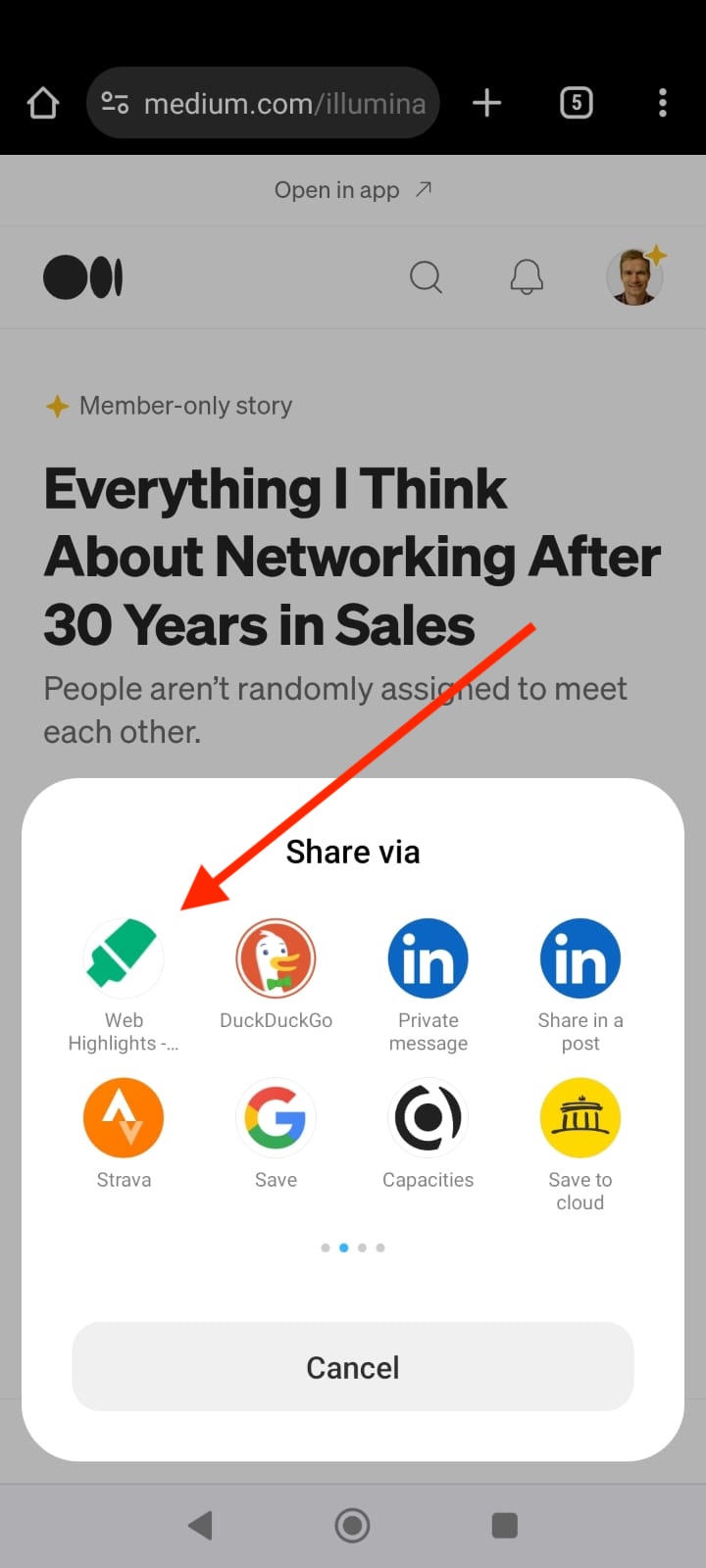
Choose any website you'd like to save and open it in your phone's browser. Navigate to your browser settings and look for the 'Share' icon. Click on it to share the webpage. Among the options, find the Web Highlights app in the share apps and select it.
Organize with tags
Congratulations! You've successfully bookmarked a page on your phone. Now, make it easier to find later by adding tags. For instance, you can create a tag like 'Reading List' to group all the websites you plan to read in the future.
Try it in Web Highlights
Open the app and go to Settings → Integrations to use this integration — the same steps as on this page.
Open Web Highlights