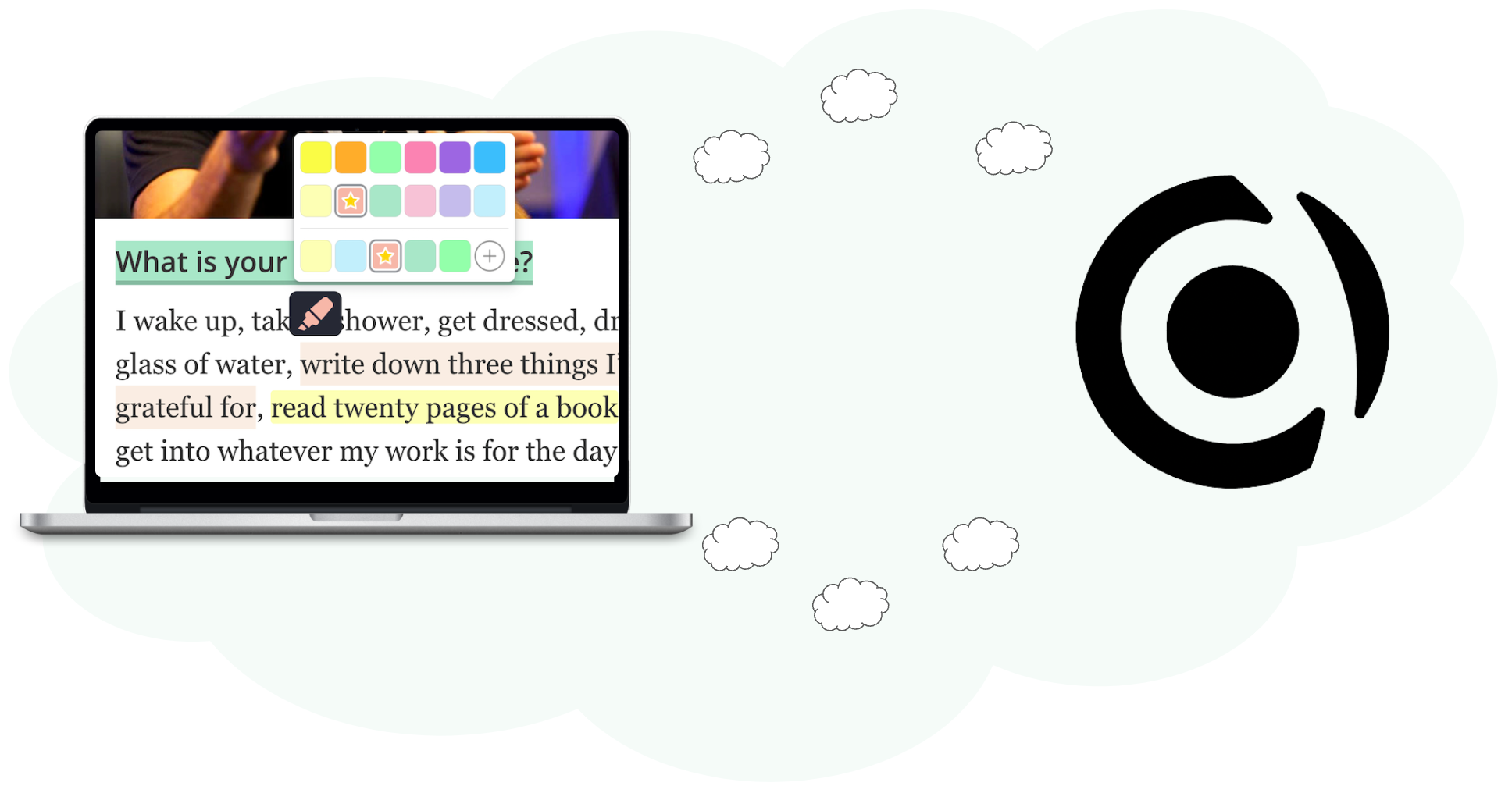
A handy tool like Capacities can gather all your research in one spot. Many people use Capacities for this purpose.
In this article, I will show you how you can seamlessly connect Web Highlights to Capacities and export pages and highlights directly to your workspace.
To follow along, make sure to have the Web Highlights Chrome Extension installed.


1. Highlight any website
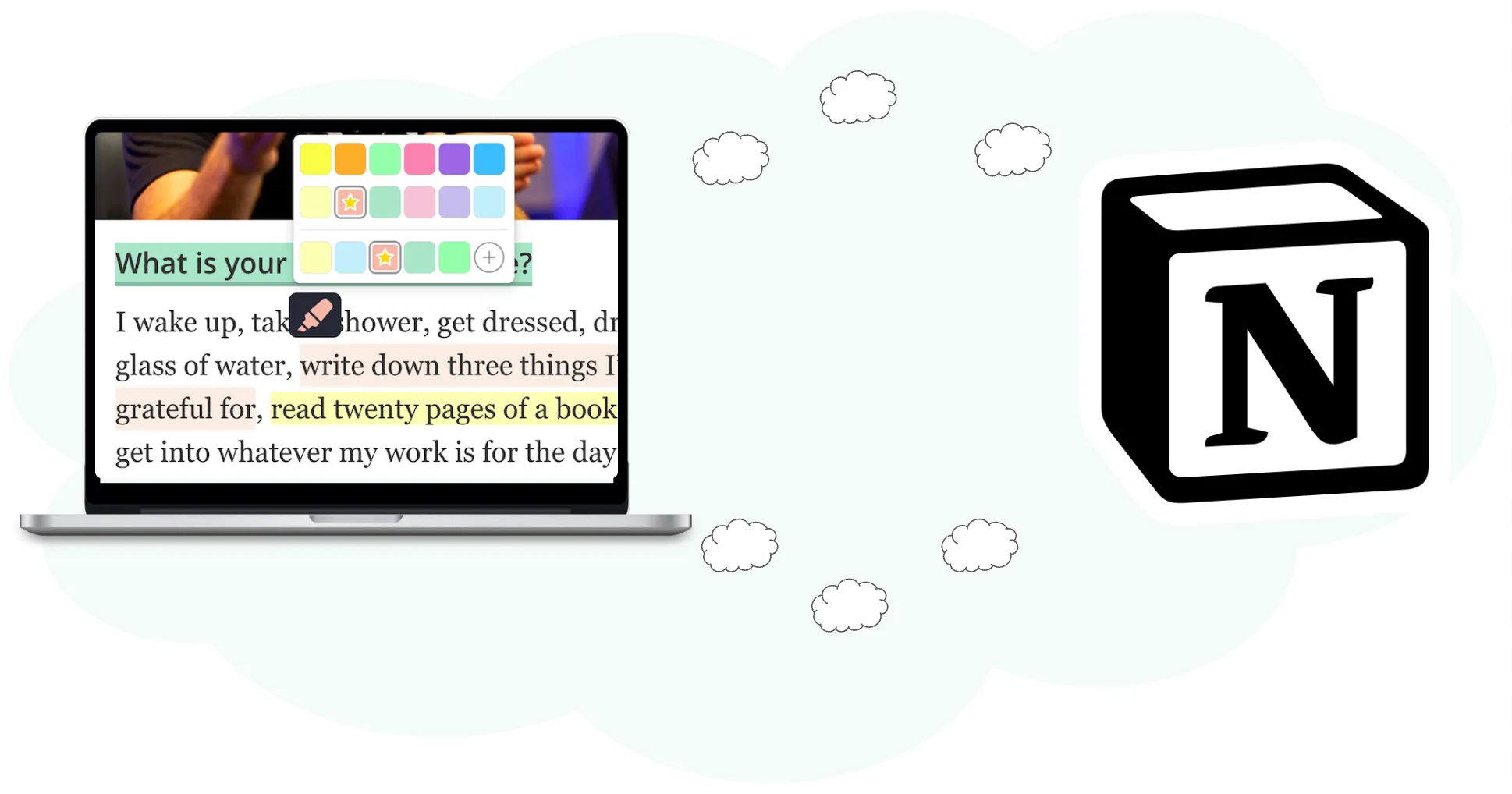
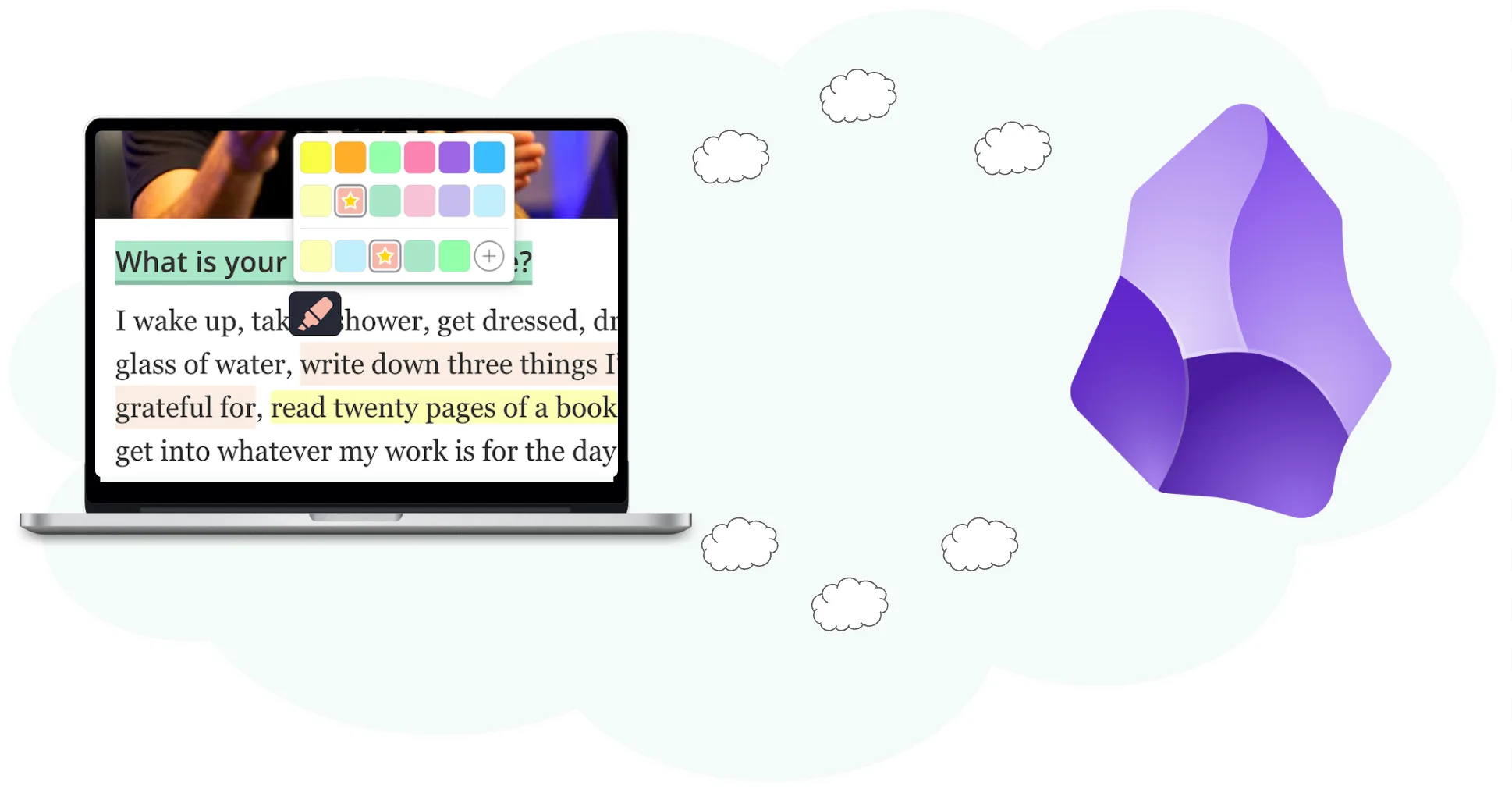
Firstly, to export our research, we need to highlight information from a website. This is a simple process if you have the Web Highlights Chrome Extension installed - Just select some text and then, either:
- Click the highlighter popup.
- Right-click the selected text and choose 'Highlight selected text.'
- Use a keyboard shortcut (Mac: ⌥ + S, Windows: ALT + S).
Your highlighted text and notes get saved automatically and are accessible from the extension's sidebar. If you've got the premium feature of cloud sync enabled, you can also access them on the web app at app.web-highlights.com .
Moreover, you can add tags, create notes, and modify the title or description of the highlighted page.
2. Connect to Capacities
First, we need to connect Web Highlights to Capacities. Since August 2026 this works with a single click — you approve the connection on Capacities’ own page, and no API token is needed anymore.
To do that, we need to open the settings and go to the integration sections of Web Highlights. You can find the settings by opening the sidebar and clicking the settings icon:
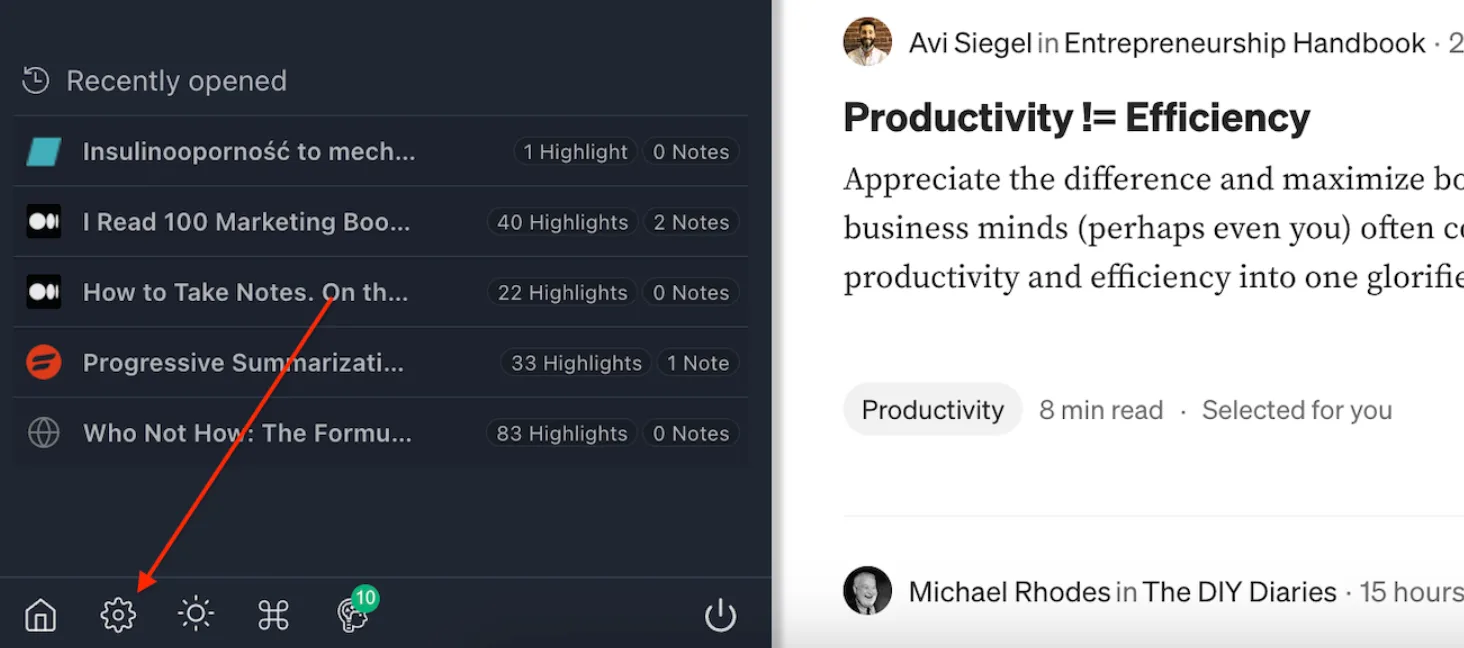
Open the integration settings, click on “Export to Capacities”, and then on “Connect to Capacities”. You will be redirected to Capacities to approve the connection.
The connection is bound to one Capacities space, which you choose while approving access. The connected space appears in your settings afterwards — to switch spaces, disconnect and connect again.
Once you approve the connection, you are sent back to Web Highlights and the integration is ready — your connected space is shown right in the settings.
Did you connect Capacities with an API token in the past? Capacities upgraded their API, so the old token no longer works — just reconnect once from the same settings page, and your exports keep working as before.
3. Export to Capacities
Navigate to any highlighted page and click the three dots in the sidebar. Select "Export to Capacities.":
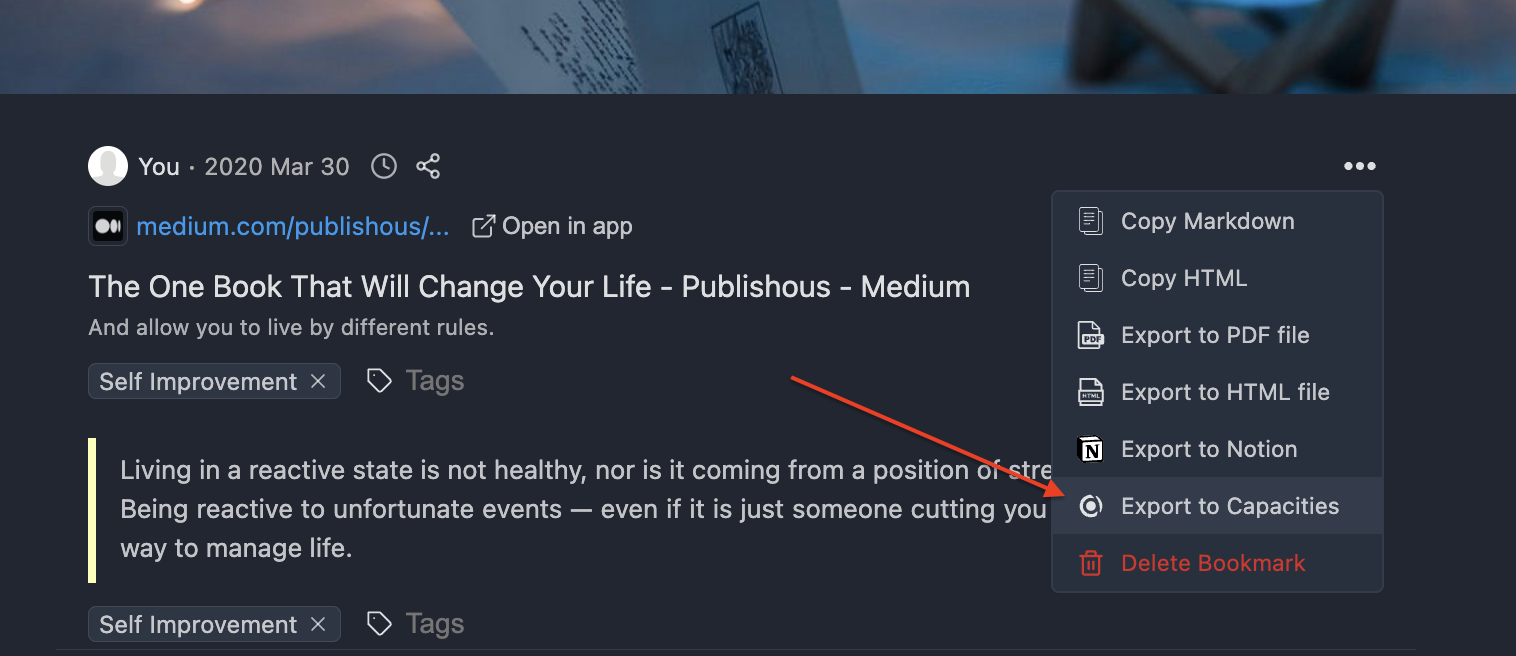
Within a few seconds, your Capacities weblink will be created.
4. Open in Capacities
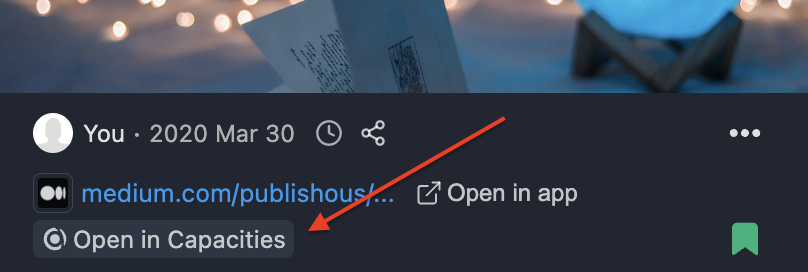
Once the weblink is created, an "Open in Capacities" button will appear on your highlighted page. Click this button to directly open the Capacity weblink in your browser.
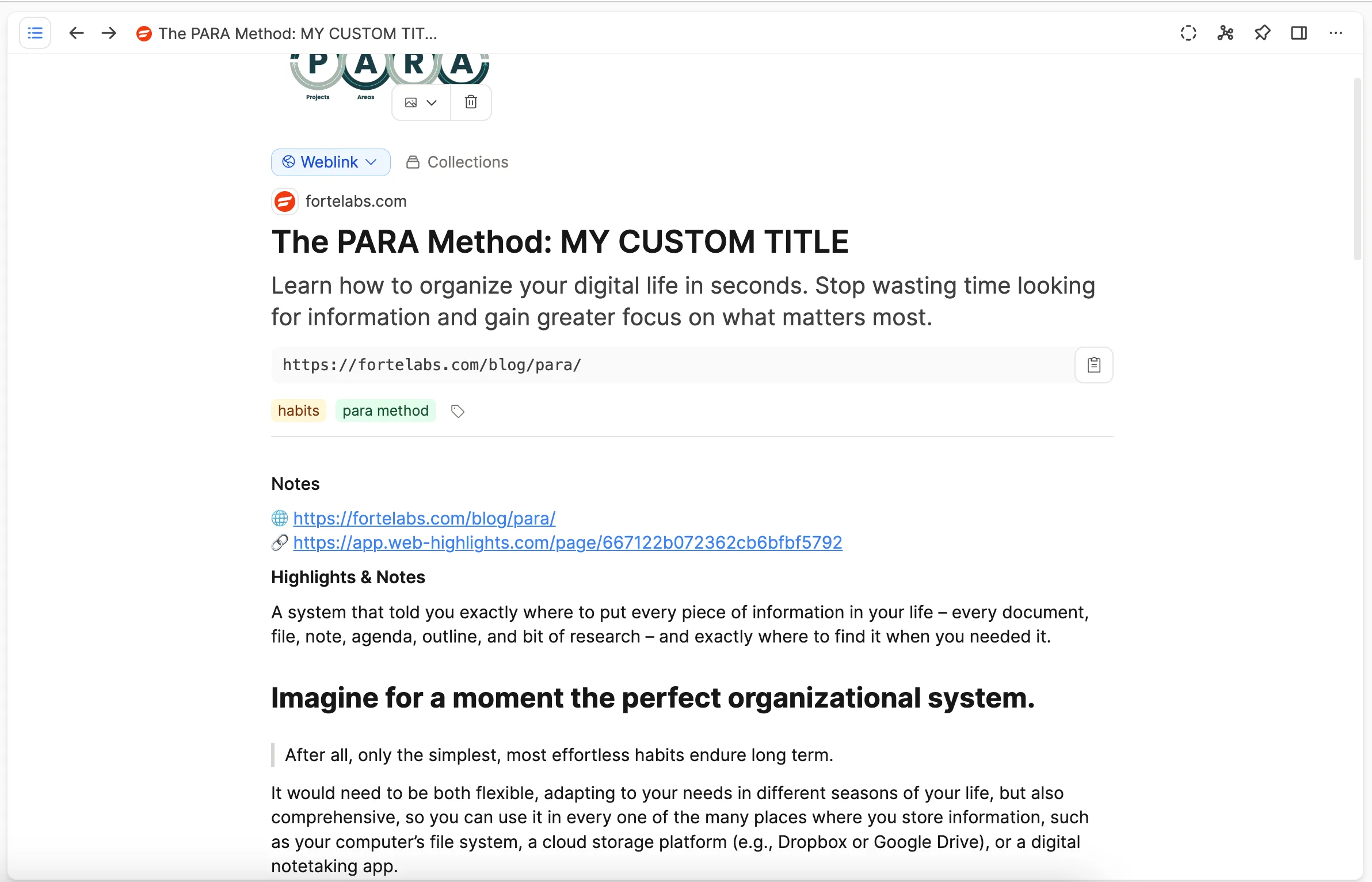
You should now be redirected to the created Capacities page, with all your highlights directly stored in your Capacities space:
Enjoy this cool new feature, I hope you like it!
Thanks for reading!
Want to learn more about how I scaled my Chrome Extension to hundreds of thousands of users as a solopreneur? Subscribe to my stories or follow me on LinkedIn and Twitter .
Related Articles: